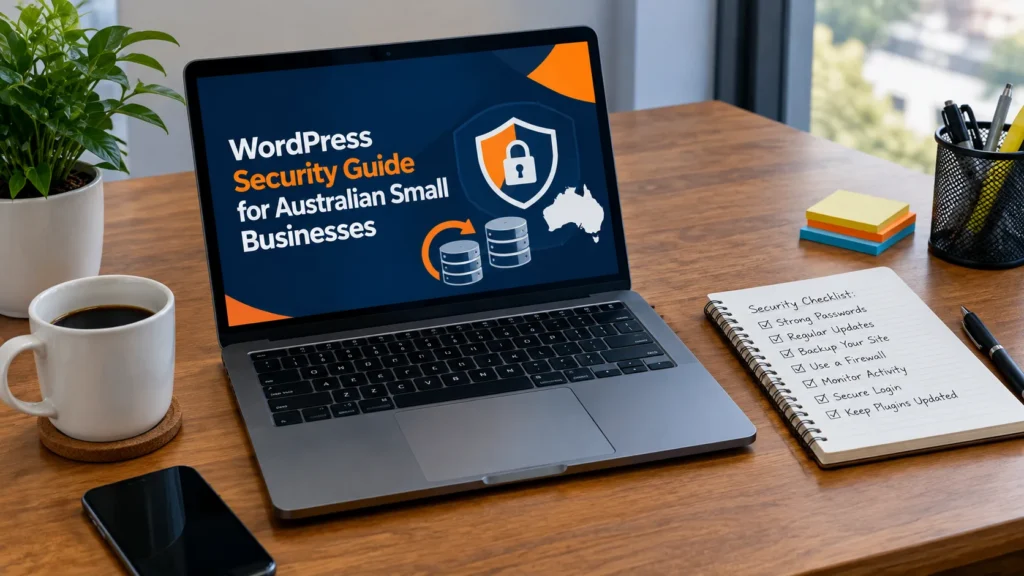
A Gold Coast photographer logs in one morning and finds her portfolio redirecting visitors to a strange shop. She has never thought about WordPress security, because the site “just worked”. Now she has no clean backup and does not know how the attacker got in.
This guide is for Australian small business owners, freelancers and bloggers who run WordPress. It explains WordPress security in plain steps, using the official WordPress hardening guide and advice from the Australian Cyber Security Centre. Every business and example here is made up, and no step can make a site completely hack-proof.
Key takeaways
- WordPress security is about reducing risk, not removing it. The official guide says so directly.
- The three basics from Australia’s cyber security agency for small business are multi-factor authentication, software updates and backups.
- Most attacks hit outdated plugins or weak logins, so updates and strong passwords come first.
- Your host looks after the server. You look after the WordPress site, plugins and passwords you install.
- A backup you have never tested is only a hope. Practise one restore.
What is WordPress security and why does it matter in Australia?
WordPress security is the set of habits and settings that make it harder for someone to break into your site, and easier for you to recover if they do. It covers your host, your WordPress software, your logins, your plugins, your files and your backups.
It matters because a hacked site can send visitors to scams, publish spam pages and damage trust. If you rely on your site for enquiries, a content marketing strategy only pays off while the site stays online and trusted. If you make money as a copywriter, your site is part of the business, and clients who offer freelance writing jobs often check it before they get in touch. If your site is also your showcase, as with our own portfolio, one hacked page can undo that trust quickly.
The official WordPress guide makes an important point: security is not about perfectly secure systems. It is about risk reduction, using the controls available to you within reason. That is the right goal for a small business, so aim for steady improvement rather than perfection.
WordPress security at a glance
The diagram lists seven layers. The table shows the main risk at each layer and a practical action. Work through them in order, starting with updates and logins, because those cover the most common attacks.
| Layer | Main risk | What to do |
|---|---|---|
| 1. Hosting | A weak server or a hacked neighbour on shared hosting | Ask your host what security and backups they provide |
| 2. Core updates | Old versions that no longer get security fixes | Keep WordPress current and use automatic updates |
| 3. Logins | Weak passwords and automated guessing | Strong unique passwords and two-step login |
| 4. Plugins and themes | Outdated or untrusted code | Update, delete unused ones, use trusted sources only |
| 5. Files and settings | Loose permissions and the built-in file editor | Tighten permissions and disable file editing |
| 6. Backups | No way to recover after an attack | Regular, tested copies kept in a trusted place |
| 7. Monitoring | Noticing a problem too late | Watch for new admins, odd files and spam pages |
Not every layer of WordPress security needs a plugin. Several are just habits, such as updating and reviewing users, and they cost nothing. Start with the free habits, then add a tool only where you can see a clear gap.
WordPress security step 1: keep everything updated
The official guide says to always keep up to date with the latest version of WordPress, because older versions are not maintained with security updates. When a vulnerability is fixed in a new release, the details needed to exploit it are almost certainly public, which makes old versions easier to attack.
- Use automatic updates. WordPress has had automatic updates since version 3.7. Turn them on where you can and check the dashboard notices.
- Update plugins and themes too. Outdated plugins are a common way in, according to the official guide.
- Delete what you do not use. If you are not using a plugin or theme, remove it rather than just deactivating it.
- Download from trusted places. Get WordPress only from wordpress.org, and get plugins and themes from the official repository or well-known companies.
- Update your own devices. The Australian Cyber Security Centre advises applying updates as soon as you are notified.
Before a big update, take a backup. A short test on a copy of your site is even better if your host offers staging. Not verified: whether your host offers staging, so ask them.
WordPress security step 2: secure your logins
The official guide describes two of the most common attacks on a WordPress site: crafted requests that target outdated software, and brute-force password guessing. You can read more about the second in its page on brute force attacks. Strong logins are your first defence against it.
- Use a long, unique password. Avoid your name, your company name, your website name, dictionary words and short or numbers-only passwords.
- Use a password manager. The Australian Cyber Security Centre’s refreshed small business guide recommends password managers, so you do not reuse passwords.
- Turn on two-step login. The official guide suggests two-step authentication as an extra measure, and has a page on multi-factor authentication for WordPress. Australia’s cyber agency also lists multi-factor authentication as a first step for small businesses.
- Avoid “admin” as a username. It is the first name attackers try.
- Keep admin accounts few. Give people the lowest role they need, and remove accounts for people who have left.
- If you must share an account, use multi-factor authentication and keep a list of who has access.
A strong password protects more than your posts. The official guide warns that someone who gains administrator access can install malicious scripts that may compromise your entire server. Treat the administrator login like the key to the building, not a convenience.
WordPress security step 3: choose plugins and themes carefully
Plugins add features, but each one is more code that must be kept secure. The official guide says to restrict yourself to the WordPress.org repository or well-known companies, because getting plugins and themes from elsewhere may lead to problems. Be especially careful with free copies of paid plugins, which can hide harmful code.
- Check before installing. Look at the last update date, reviews and what permissions it asks for.
- Question write access. If a plugin wants write access to your files, the official guide says to check that it is legitimate.
- Be wary of code execution plugins. Plugins that run PHP from the database can magnify the damage of a successful attack.
- Keep your list short. Fewer plugins means fewer things to update and fewer ways in.
- Apply the same care to every tool. That includes any free AI writing tools or other services you connect to your site: check who made it and what access it asks for.
The official guide names several firewall and security plugins as examples, such as Wordfence and iThemes Security, and firewall services such as Cloudflare and Sucuri. I am not recommending any of them. Check current reviews and update dates, and avoid stacking several overlapping security plugins, which can conflict.
WordPress security step 4: lock down files and settings
This step is more technical, so ask your host or a developer if you are unsure, and take a backup first. A wrong change to a configuration file can take a site offline.
- Use SFTP, not plain FTP, if your host offers it, so your password is encrypted in transit.
- Tighten file permissions. The official guide gives a common scheme of 755 for directories and 644 for files, with wp-config.php readable only by you and the server.
- Disable the file editor. The dashboard lets administrators edit plugin and theme files, which is often the first tool an attacker uses after logging in. Adding the line below to wp-config.php removes that option.
- Use HTTPS for your admin area so passwords and data are encrypted.
- Treat “obscurity” as a bonus. Changing the admin username or the database table prefix may help a little, but the official guide says security through obscurity is not a sound main strategy.
define( 'DISALLOW_FILE_EDIT', true );
The guide notes that this will not stop an attacker from uploading malicious files, but it might stop some attacks. Password-protecting the wp-admin folder can add a second layer, but it can also break some features, so test carefully.
WordPress security step 5: back up and practise a restore
Backups are the safety net for every other step. The Australian Cyber Security Centre’s small business guide tells businesses to create backups of their website and to update its systems and plugins often. The official WordPress guide advises regular backups of both files and the database.
- Back up files and database. You need both to rebuild a site.
- Keep copies somewhere trusted. A copy stored only on the same server can be lost with it.
- Keep older snapshots. The guide gives an example where an attack was found days after it started, so a pre-attack copy was still useful.
- Test the restore. Practise once, or watch your host do it, so you know it works.
A backup you have never restored is a guess. Schedule one test restore every few months, and write down the steps and where the backups live, so that you or someone you trust can act quickly when something goes wrong.
WordPress security step 6: monitor and respond
Prevention is not always enough, so you also need to notice problems early. The official guide says monitoring helps you react faster, find out what happened and recover.
Warning signs
- New admin users you did not create
- Pages or posts you did not publish, especially spam
- Visitors redirected to another site
- Browser or Google security warnings
- Sudden changes in speed or unexplained file changes
Check your site in Google Search Console and look at which pages are indexed. Our URL index checker can help you see whether strange pages are being indexed, and our guide to how to measure SEO copywriting performance shows how to watch traffic and indexing over time.
If you think your site is hacked
- Do not ignore it. Work from a safe, clean computer.
- Read the official WordPress page, FAQ: My site was hacked.
- Restore from a clean backup if you have one, then update everything and change every password.
- Contact your host. They may help with logs and recovery.
- Report the incident through cyber.gov.au, and if you hold customers’ personal information, check your obligations. Depending on your business, the Privacy Act may require you to tell affected people about certain data breaches. The Australian Cyber Security Centre points small businesses to the OAIC’s guide, and a legal professional can advise.
Hosting and WordPress security: who is responsible for what?
Many owners assume the host handles everything. The official guide explains that hosts are often responsible for the infrastructure, but not for the application you choose to install. In its words, most hacks come from the application side, which is the environment you are responsible for.
Shared hosting adds another risk. If another site on the same server is compromised, yours can potentially be affected even if you follow every step. Ask your host about their security precautions, how they handle backups and what happens if a site is infected. Not verified: what any specific Australian host offers, so check their current terms.
The official guide lists qualities of a trusted host. Use them as questions when you compare WordPress security support:
- Do they readily discuss your security concerns and the security features they offer?
- Do they run recent, stable versions of the server software?
- Do they provide reliable methods for backup and recovery?
- What is their process if a customer site is infected?
Write the answers down. If a host cannot explain its approach to WordPress security in plain words, treat that as useful information before you commit.
A monthly WordPress security routine
Security works best as a short, regular habit. The table lists a simple routine, and the graph shows the example time it might take for a small site. Both are my own planning assumptions, not measured results.
| Task | How often | Time (my estimate) |
|---|---|---|
| Apply updates to core, plugins and themes | Weekly or monthly | 15 minutes |
| Check that the last backup worked | Monthly | 10 minutes |
| Review the user list for unknown admins | Monthly | 5 minutes |
| Delete plugins and themes you no longer use | Monthly | 10 minutes |
| Check scan results and alerts | Monthly | 15 minutes |
| Do a test restore of a backup | Every 3 to 6 months | 30 to 60 minutes |
If you only have ten minutes this month, apply updates and look at the user list. Those two checks cover a lot of the common problems, and they keep your WordPress security routine going even in a busy month.
Common WordPress security mistakes
- Ignoring updates because everything seems to work.
- Keeping unused plugins deactivated but still installed.
- Reusing passwords across your site, email and hosting.
- Installing a pirated plugin to save money.
- Relying on one security plugin and doing nothing else.
- Never testing a backup.
- Giving everyone administrator access.
- Editing wp-config.php without a backup.
WordPress security, trust and SEO
A hacked site can fill with spam pages that Google may index, and visitors may see browser warnings. Both harm trust, and trust is what your copy and your SEO depend on. A clear business identity helps visitors tell your real site from a fake copy, so keep your about us page accurate and a working contact page where customers can report a problem.
Basic housekeeping also supports trust. Keep the pages in our website copywriting checklist for small business current, such as your privacy policy and contact details, and read the SEO copywriting guide for how copy and search fit together. None of this changes your rankings by itself, and Google does not publish a rule that WordPress security improves them. Think of security as protecting the work you have already done.
Frequently asked questions about WordPress security
Is WordPress secure?
WordPress core is taken seriously by its developers and is updated regularly, but a site is only as secure as its updates, plugins, passwords and hosting. The official guide stresses that security means reducing risk, not eliminating it.
What is the most important WordPress security step?
Keeping WordPress, plugins and themes updated, together with strong unique passwords and two-step login. These cover the most common attacks described in the official guide.
Do I need a WordPress security plugin?
Not always, but a reputable one can help with scanning, login limits or a firewall. Choose one with current updates and good reviews, and avoid running several that overlap. The habits in this guide matter more than any single plugin.
How often should I back up my WordPress site?
It depends on how often your content changes. A busy site may need daily backups, a static one less often. The key is that backups run automatically, are stored in a trusted place and have been tested. Not verified: any single schedule that fits every site.
What should I do if my WordPress site is hacked?
Stay calm, read the official hacked-site FAQ, restore from a clean backup if you have one, update everything, change all passwords and contact your host. In Australia, you can report incidents through cyber.gov.au.
Does my host handle WordPress security for me?
Only part of it. Hosts generally look after the server and infrastructure. You are responsible for the WordPress software, plugins, themes and passwords you install and use.
Is it safe to edit wp-config.php?
It can be, but a mistake can break your site, so take a backup first and ask your host or a developer if you are unsure. Disabling the file editor is a common change described in the official guide.
Does WordPress security affect SEO?
Indirectly. A hacked site can show spam pages or warnings that damage trust and may affect search visibility. I am not aware of Google saying security tweaks alone improve rankings, and no step guarantees results.
For more on the official advice, see the WordPress hardening guide and the Australian Cyber Security Centre’s small business cyber security advice.
Final thoughts on WordPress security
Good WordPress security for an Australian small business is mostly steady habits: update everything, use strong unique logins with two-step authentication, choose plugins carefully, lock down files with help if needed, test your backups and watch for warning signs. Start with updates and logins this week, and remember that no step can promise a site that cannot be hacked.
If you are building your skills, our copywriting guide for beginners is a good next read, because a secure, trusted site gives your writing a safe place to work.
Last updated on 30 October 2026. Sources used: WordPress hardening guide (WordPress developer handbook), WordPress documentation on a hacked site, WordPress developer pages on brute force and multi-factor authentication, and the Australian Cyber Security Centre’s small business advice.

- I’m Saba Sheikh, a self-employed copywriter and SEO content writer specializing in website copy, landing pages, SEO blog writing, product descriptions, and email copywriting. I create search-optimized, conversion-focused content that helps startups, small businesses, and eCommerce brands grow their online presence and attract more customers.